
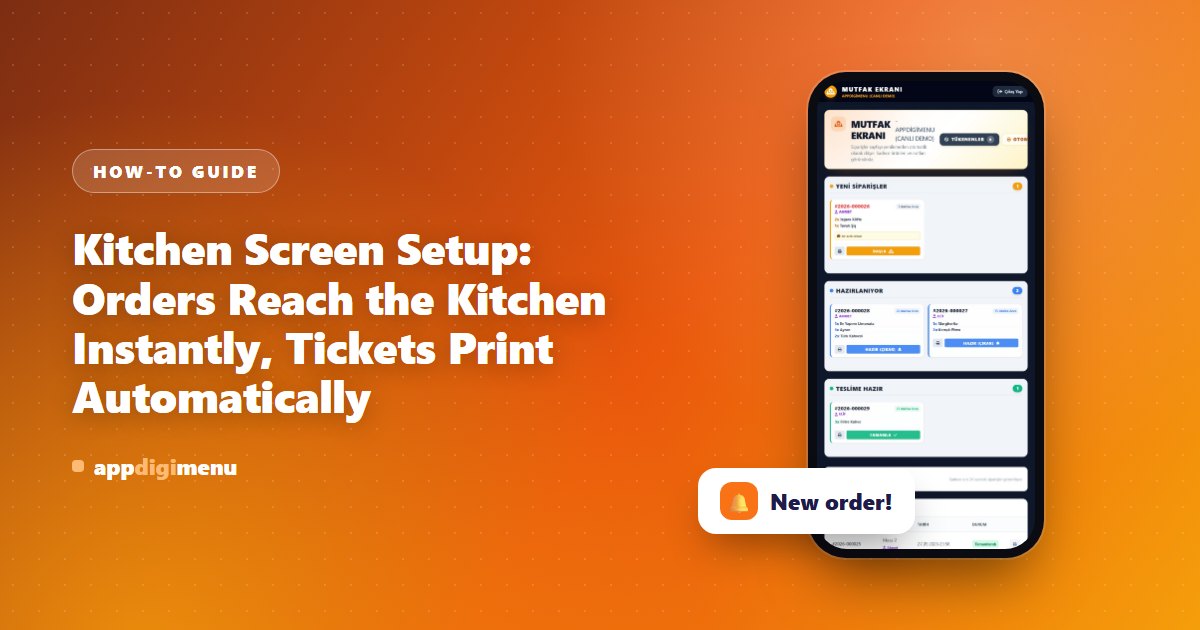
During a busy service, an order that reaches the kitchen late means longer waits at the table. The kitchen screen brings orders from guests or waiters to the kitchen instantly; nobody carries paper.
Setup
- Set the kitchen PIN. In Restaurant Settings, enter a 6-digit password under "Kitchen Screen Login Password (PIN)". Kitchen staff open only the kitchen screen, without access to the main panel.
- Send the link to the tablet. Copy the "Kitchen Login Link" from the same section to the tablet or computer in the kitchen and sign in with the PIN.
- Turn on the sound alert. With "New Order Sound Alert" on, a bell rings and the tab title flashes when a new order arrives, so nothing is missed.
- Print tickets automatically. With "Automatic Printing in the Kitchen" on, every new order ticket goes to the printer by itself. To print without the print dialog appearing, set the receipt printer as the default on the kitchen computer and start Chrome with the --kiosk-printing parameter. When it is off, tickets print with the order's "Print" button.
The kitchen screen during service
- New: The order arrives with its items, table and notes.
- Preparing: Started orders move to this column; the status also updates on the waiter and order screens.
- Ready to serve: The finished order is marked and the waiter takes it out.
Close a sold-out item instantly
In the kitchen screen's "Sold out" section, the item you tap is sold out for today: it appears faded on the guest menu and cannot be ordered. It returns to sale automatically at the end of the day, so there is nothing to do the next morning.
Tip
With "WhatsApp to the Waiter on the Kitchen's Ready Button", the waiter can also get a WhatsApp message when the order is ready.