
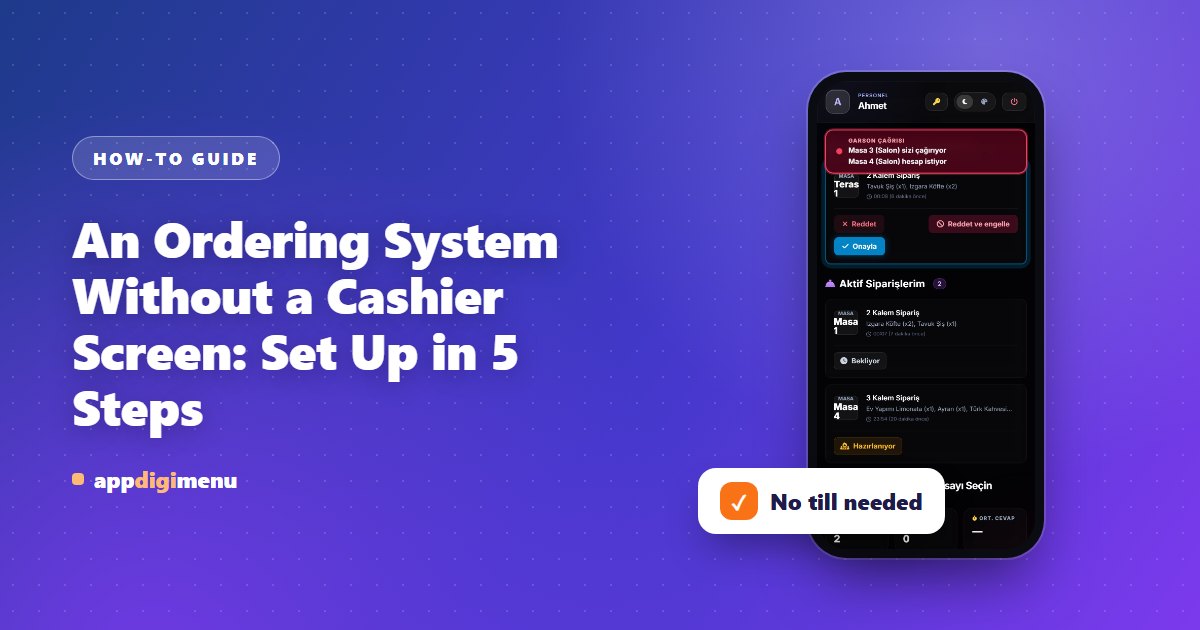
Not every business needs a cashier screen. You can keep your existing till or billing software and still manage QR menu orders digitally. In this setup the order goes from the table to the waiter and the kitchen, and the waiter closes the table's bill.
Who is the till-free setup for?
- Businesses that want digital ordering without replacing their till
- Cafés and restaurants where the waiter takes payment at the table
- Venues that want to start with ordering and add the cashier later
Step-by-step setup
- Switch off the Cashier Module. In Restaurant Settings, turn off "Cashier Module". The cashier screen can no longer be opened; the waiter and kitchen flow continues as before.
- Turn on guest ordering. Keep "Live Panel Ordering" on. Guests scan the QR code on the table and order from the menu.
- Add your waiters. On the Waiters page, use "Add New Waiter" to give each waiter a name and a 6-digit login PIN. Waiters sign in with their own PIN through the secret login link on that page.
- Connect the kitchen screen. Send the "Kitchen Login Link" from Restaurant Settings to the tablet in the kitchen and set a 6-digit kitchen PIN. With "Automatic Printing in the Kitchen", every order ticket prints by itself.
- Let the waiter close the bill. When guests leave, the waiter taps "Close Bill" on the occupied table's card and chooses Cash or Card. The table's open orders are closed; orders still awaiting waiter approval are cancelled.
Limits to know
Discounts, complimentary items, refunds, bill splitting and the Z report are only available while the Cashier Module is on. When you need them, switch the Cashier Module back on with one toggle; your menu, QR codes and past orders stay exactly as they are.